belajar dan berbagi

cara install printer canon ir3300

Pada posting terdahulu, kita telah membahas tentang Cara install printer canon ir5000, Cara install printer canon ir6000. Nah, kini saya akan mencoba untuk membuat posting tentang "cara install printer canon ir3300"
cara install printer canon ir3300


1. Pasang kabel LAN yang menghubungkan antara Printer dan Komputer
2. Setting IP Address Printer
3. Lanjutkan dengan Add Printer. Caranya buka Control Panel
cara install printer canon ir3300

Klik Printer and Fax
cara install printer canon ir3300

KLik Add Printer
cara install printer canon

KLik Next
canon ir3300

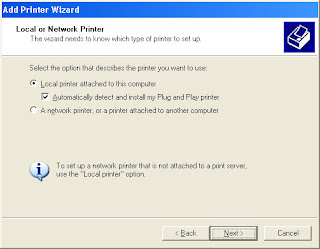
pilih LOcal Printer attach
printer canon ir3300

Klik lagi > lanjut sampai ke Select a Print Port
cara print di mesin fotocopy

Pilih Create a New Port, dan klik lagi untuk menentukan pilihan ke Standart TCP/IP Port
cara menghubungkan mesin fotocopy dengan komputer

Lanjtkan dengan klik Next sampai ke Add port
cara menggunakan mesin fotocopy sebagai printer

Isikan ip Address anda, misalnya 192.168.2.10
Lanjutukan dengan Next
Pilih Standart, Generic Network Card, KLick Next, sampai ke seperti gambar beriut ini:

cara mudah install printer canon ir3300

Klik Have Disk, kemudian cari pada folder tempat anda simpan driver canon ir3300, lanjutkan dengan klik OK
Lanjutkan dengan pilih Canon 2200-3300 PCL5
Klik Next sampai Finish

Keyword :
cara menghubungkan mesin fotocopy dengan komputer
cara menggunakan mesin fotocopy sebagai printer
cara install scanner mesin fotocopy di windows 7
cara sharing printer mesin fotocopy
driver ir5000
cara scan dari mesin fotocopy ke komputer
driver canon ir 6000
cara print di mesin fotocopy canon

Cara install printer canon ir5000, Cara install printer canon ir6000

Kalau beberapa tahun silam kita menggunakan mesin photo copy dengan serba manual, mulai dari menysusun hasil foto copy yang dibuat rangkap dan lainnya. Yah, lumayan repot. Ketika ada konsumen memberikan order skripsi 7 rangkap dengan jumlah lembar misalnya 130 lembar, berarti kita harus memisahkan / menyortir kertas dengan jumlah 7x130, jadi semuanya ada berapa lembar? Silahkan hitung sendiri. Pada saat itu saya juga sempat menghabiskan dua ekor mesin type manual dengan seri NP.
Seiring dengan berkembangnya kemajuan tekhnologi photo copy, maka muncullah beberapa type mesin photo copy dengan seri ir, pertama saya mengenal type ir5000 dan ir6000.
Kelebihan / Keunggulan dari type ir5000 dan ir6000 diantaranya adalah dapat menyortir hasil copy dengan menggunakan fungsi Finisher yang ada pada layar monitor, bisa digunakan untuk mencetak / print dari komputer.
Sesuai dengan judul posting ini yaitu Cara install printer canon ir5000, atau bisa diartikan dengan bahasa kita sehari-hari "cara menghubungkan mesin fotocopy dengan komputer". Nah, berikut ini saya akan mencoba menjelaskan cara menghubungkan mesin fotocopy dengan komputer.
1. Menghubungkan mesin fotocopy dengan komputer dengan menggunakan LAN
Bahan dan alat yang dibutuhkan:
1. Ethernet Board pada mesin photo copy
2. Ethernet Board pada komputer
3. Kabel LAN beserja RJ45
4. Driver

Untuk menghubungkan mesin photo copy ke komputer dengan menggunakan LAN tentunya pada mesin photo copy diharuskan telah terpasang colokan kabel LAN, dalam istilah komputer dinamakan Ethernet Board. Jika belum terpasang berarti harus membelinya. Untuk harga saat saya membeli seminggu yang lalu seharga Rp. 600.000. Untuk lebih pastinya silahkan cari harga Ethernet Board canon ir6000 di google dengan kata kunci "Harga Ethernet Board canon ir6000"
(1) Anggap saja saat ini pada mesin fotocopy telah terpasang Ethernet Board (tempat untuk colok kabel LAN)
(2) Pasang kabel LAN pada mesin fotocopy dan komputer, pastikan telah terpasang dengan benar. biasanya jika kabel telah terpasang dengan benar, maka terdapat sinyal lampu berwarna hijau.
(3) Setting IP Address pada mesin foto copy / mesin photo copy. Yang benar foto copy apa photo copy ya?
Contoh : IP Address . 192.168.1.111
Sub: 255.255.255.0
4. Lanjutkan dengan install driver pada komputer, jika belum memiliki driver silahkan hubungi penjual mesin photo copy. Kalau yang jual mesin photo copy-nya jauh bisa juga di download pada halaman Driver iR5000-6000 Download.
Berikut cara install driver printer ir5000 /ir6000 untuk Windows XP:
- Klik Start > Control Panel
Cara install printer canon ir6000
- Printers and Faxes
- Klik Add Printer
Cara install printer canon ir6000

- Lanjutkan dengan Klik Next
- Pilih Pilih Local Printer attached to this computer
cara menghubungkan mesin fotocopy dengan komputer

- lanjut dengan klik Next lagi
Cara install printer canon ir6000

Kemudian anda menemukan sebuah menu pilihan pada select a printer port. Pada menu tersebut terdapat dua pilihan yaitu :
Use the following port dan Create a new port. Silahkan pilih Create a new port, dan LOcal Port ganti dengan Standar TCP/IP Port
cara menghubungkan mesin fotocopy dengan komputer2.jpg

- Klik Have Disk > Browse > Temukan folder lokasi menyimpan Driver ir5000-ir6000. Klik lagi Open

cara menggunakan mesin fotocopy, cara mengoperasikan mesin fotocopy, cara kerja mesin fotocopy, cara merawat mesin fotocopy, cara pengoperasian mesin fotocopy, cara perawatan mesin fotocopy, cara pemeliharaan mesin fotocopy, cara penggunaan mesin fotocopy
- KLik Next Lagi

cara menghubungkan mesin fotocopy dengan komputer2.jpg

- Klik Next lagi, lalu masukkan ip address sesuai dengan IP address yang ada di mesin photo copy. Pada contoh ip address diatas adalah 192.168.1.111
Cara install printer canon ir

- Lanjut lagi dengan klik Next dan pilih Standart : Generic Network Card

cara menghubungkan mesin fotocopy dengan komputer lengkap.jpg
- Lanjut klik Next lagi dan setelah itu klik Finish

cara menghubungkan mesin fotocopy dengan komputer lengkap beserta gambar
Semoga berhasil.
Jika belum berhasil, silahkan coba install kembali dengan cara terlebih dahulu menghapus hasil install pertama.
cara install printer canon
cara install printer canon ir

Driver iR5000-6000 download

Driver iR5000-6000 download.
Driver iR5000-6000 download
Dak pake cerita panjang, bagi yang butuh Driver iR5000-6000 silahkan download pada link dibawah ini:
Driver iR5000-6000.rar

spesifikasi imagerunner 2530 dan Fiture

Canon iR-2530 Features

Operating at speeds of up to 30 pages per minute
(A4), the imageRUNNER 2530 provides a compact
suite of functionalities for small businesses and
workgroups. From standard network printing to built-
in duplex, this multifunctional device is suitable for any office setting.

Highlights
• Up to 30 pages per minute in black-and-white
output
• Multifunction capabilities in Copy, Print and Scan. • Standard network printing at 1200 x 1200dpi
• Standard scan capability in black-and-white and
colour with optional send feature for convenient
document distribution
• Optional Super G3 fax capabilities for faster
information transfer
• Standard duplex paper output for paper usage
efficiency
• Standard USB support to print and scan from
thumb-drive
• Standard 250 / 550 sheets paper cassette with
optional 50 sheets document feeder and internal
finisher
• Separate toner and drum design with long life
usage
• Convenient device management features and
environmentally friendly design

Multifunction to handle all your needs
• Standard network print with output at a laser
speed of 30 pages per minute
• Optional PDL support in PCL and PostScript • Powerful copy functions such as reserved copy, ID
card copy and image combination.
• Support colour image scanning from device to PC
with optional colour send feature to emails, shared
folders.
• Optional fax for added functionality without taking
up additional space

Walk-up Convenience
• Print and option to scan directly from USB
removable media without the use of a PC
• Auto paper size detection to detect correct paper
size during paper loading
• Convenient and hassle-free clearance of paper jams
to upkeep business productivity


Long life consumables to upkeep your business
productivity
• High yielding supplies and consumables to keep
running costs to a minimum
• Easy to load bottle design with quick toner
replenishment
• Longer machine uptime with few replacements
required

Compact footprint with finishing accessories for
professional looking documents
• Compact, space saving design with support for
various paper sizes.
• Standard 250 / 550 sheets paper capacity with
maximum paper input capacity of 1,950 sheets
• Standard rotation, collation and grouping of
documents for easy document distribution.
• Optional inner finisher with corner stapling finishing

Convenient device management
• Remote user interface for simplified approach to
managing and controlling the device over the
network
• Manage and control authorized access to the device
with department IDs
• Reduce administration and device monitoring with
e-Maintenance

Care for our Environment
• With Canon’s RAPID Fusing SystemTM, the system
requires lesser time to warm up, reducing energy
consumption, without affecting staff productivity.
• Save paper and cut costs further by using double-
sided output


Canon iR-2530 Specifications
Device imageRUNNER 2530
Type Desktop (Reader Combined + Inner Output)
Imaging System Laser Dry Electrostatic Transfer System
Memory Standard: 256MB
Maximum: 512MB
Network Interface Ethernet (100Base-TX / 10Base-T), USB 2.0
Warm Up Time 30 seconds maximum after powering ON
1 second maximum from the Sleep mode
First Copy Output Time 5.4 seconds or less
Multiple Copies 1 to 999 sheets
Magnification 25% to 400% (1% increment)
Maximum Original Size Max. A3 / 11" x 17"
Duplex Standard
Copy / Print Speed 30ppm
Resolution Reading: 600 x 600dpi
Writing: 1200 x 1200dpi
Paper Sources (80gsm) Paper Cassette: Standard: 250 + 550 sheets paper capacity
Maximum: 250 + 3 x 550 sheets paper capacity
Stack Bypass: Standard: 100 sheets paper capacity
Acceptable Paper Weights Paper Cassette: 64 to 90gsm
Stack Bypass: 64 to 128gsm
Main Unit Dimensions 565 x 680 x 806mm (with the platen cover)
(W x D x H) 565 x 693 x 896mm (with the feeder)
Weight Approx. 67.7kg
Power Source 220 - 240V AC, 50 / 60Hz
Maximum Power Consumption Approx. 1.542KW
Toner Yield (6% Coverage) Approx. 14,600 sheets (A4)
Drum Yield Approx. 132,000 sheets (A4)
Print Specification
PDL Standard: UFR II LT
Optional: PCL 5e/6, PS3
Network OS Windows 2000 / XP / Server2003 / Vista / Server2008 / Win7,
Mac OSX (10.4.9 or later)
Network ScanGear Specification
Supported OS Windows 2000 / XP / Server2003 / Vista / Server2008 / Win7
Resolution BW: Up to 600 x 600dpi
CL: Up to 300 x 300dpi

sumber spesifikasi imagerunner 2530 dan Fiture
download driver canon ir 1022

download driver canon ir 1022

download driver canon ir 1022

Sedikit tentang Canon iR1022iF

Canon iR1022iF Multifunction Desktop Printer Duplex Copier Colour Scanner & Fax Machine

Canon iR1022iF Specifications

Type Desktop
Maximum Original Size A4
Copy Sizes Cassette: A4, Stack Bypass: A5 A4, Envelopes
Resolution Copying: 600dpi x 600dpi, 1200dpi equivalent x 600dpi
Printing: 1200dpi equivalent x 600dpi (PCL, UFRII LT) 256 Gradations
Copy/Print Speed A4: 18cpm (iR1018J/1018), 22cpm (iR1022A/22F/22i/22iF)
Magnification Zoom: 50-200%, Fixed: 50%, 70%,100%, 141%, 200%
First copy time 8.0 sec or less (iR1018J/1018), 12.0 sec or less (iR1022A/22F/22i/22iF)
Warm-Up Time Less than 13.5 sec.for iR1018J/18/22A/22F
less than 16 sec. for iR1022i/22iF
Multiple Copies/Prints 1 to 99 sheets
Double-Sided Automatic stackless
Paper weight Cassette: 64 to 90g/m2, Stack Bypass: 56 to 128g/m2
Double-Sided: 64 to 80g/m2
Cassette A4
Paper Capacity (80g/m)
Standard 500 sheets x 1 cassette, Stack Bypass: 100 sheets
Optional 500 sheets x 1 cassette, Max.Total paper capacity: 1,100 sheets
CPU Canon Custom Processor, 192MHz
Memory 64MB (iR1018J), 128MB (iR1018/22A/22F), 256MB (iR1022i/22iF)
Interface iR1018J USB2.0
iR1018/22A/22F Ethernet (100Base-TX/10Base-T) optional, USB2.0
iR1022i/iF Ethernet (100Base-TX/10Base-T), USB2.0
Power Supply 220V AC to 240V AC
Power Consumption(W) 954W max.
Dimensions (WxDxH) 520 x 457 x 378 mm (iR1018J/18)
520 x 457 x 453 mm (iR1022A/22F/22i/22iF)
Weight Approx. 22.0kg (iR1018J/18) Approx. 24.1kg (iR1022A/22F/22i/22iF)
SEND FUNCTION(1)
Scan Speed with DADF BW: 20ipm A4 300dpi, Colour: 6ipm A4 300dpi
Scan Resolution BW: 200x100dpi, 200dpi, 200x400dpi, 300dpi, 400dpi, 600dpi
Colour: 100dpi, 150dpi, 200dpi, 300dpi (JPEG)
300dpi (High compression PDF)
Destinations E-Mail/Internet FAX (SMTP), PC (SMB,FTP), iWDM Gateway
Address book Local (Max.200)
File Format Single: (BW) TIFF, PDF (Colour) JPEG, High compression PDF
Multi: (BW) TIFF, PDF (Colour) High compression PDF
PRINTER FUNCTION
PDL UFRII LT (Standard for iR1018/22A/22F/22i/22iF), PCL 5e/6
(Standard for iR1022i/22iF)
Resolution 1200dpi equivalent x 600dpi (PCL, UFRII LT),
1200dpi x 1200dpi (UFRII LT with PCL option)
Memory 128MB (iR1018/22A/22F),
256MB (iR1022i/22iF)
CPU Canon Custom Processor, 192MHz (Uses Main Unit CPU)
PCL Fonts Roman113 (including Barcode Fonts)
Supported OS PCL: Windows 98/Me/2000/XP/2003 Server
UFRII LT: Windows 98/Me/2000/XP/2003Server,
Mac OS 10.2.8-10.4.3
Interface (Standard) Stack Bypass: 56 iR1018/22A/22F to 128g/m Ethernet (100Base-TX/10Base-T) optional, USB2.0
iR1022i/iF Ethernet (100Base-TX/10Base-T), USB2.0
Network Protocol TCP/IP (LPD/RAW/ Port 9100)
DADF
Paper size A4R, A5R, A5
Paper weight 50 g/m
Max. Number of originals A5R to A4: 50 sheets (80g/m2)
Document Scanning
speed (max.)
Copy iR1022A/1022F/1022i/1022iF: A4 20 ipm
(50/60Hz) Scan BW: 20ipm A4 300dpi, Colour: 6ipm A4 300dpi
OTHER ACCESSORIES iR1018/22 Plain Pedestal, Cassette Feeding Unit, Cassette, Card Reader-
E1, Card Reader Attachment, Network Kit (Standard for iR1022i/22iF),
PCL Kit (Standard for iR1022i/22iF)
sumber

Kita kembali ke download driver canon ir 1022, untuk download driver canon ir 1022 bisa klik pada link di bawah ini:
download driver canon ir 1022
Back To Top